Your colour
 12Full size
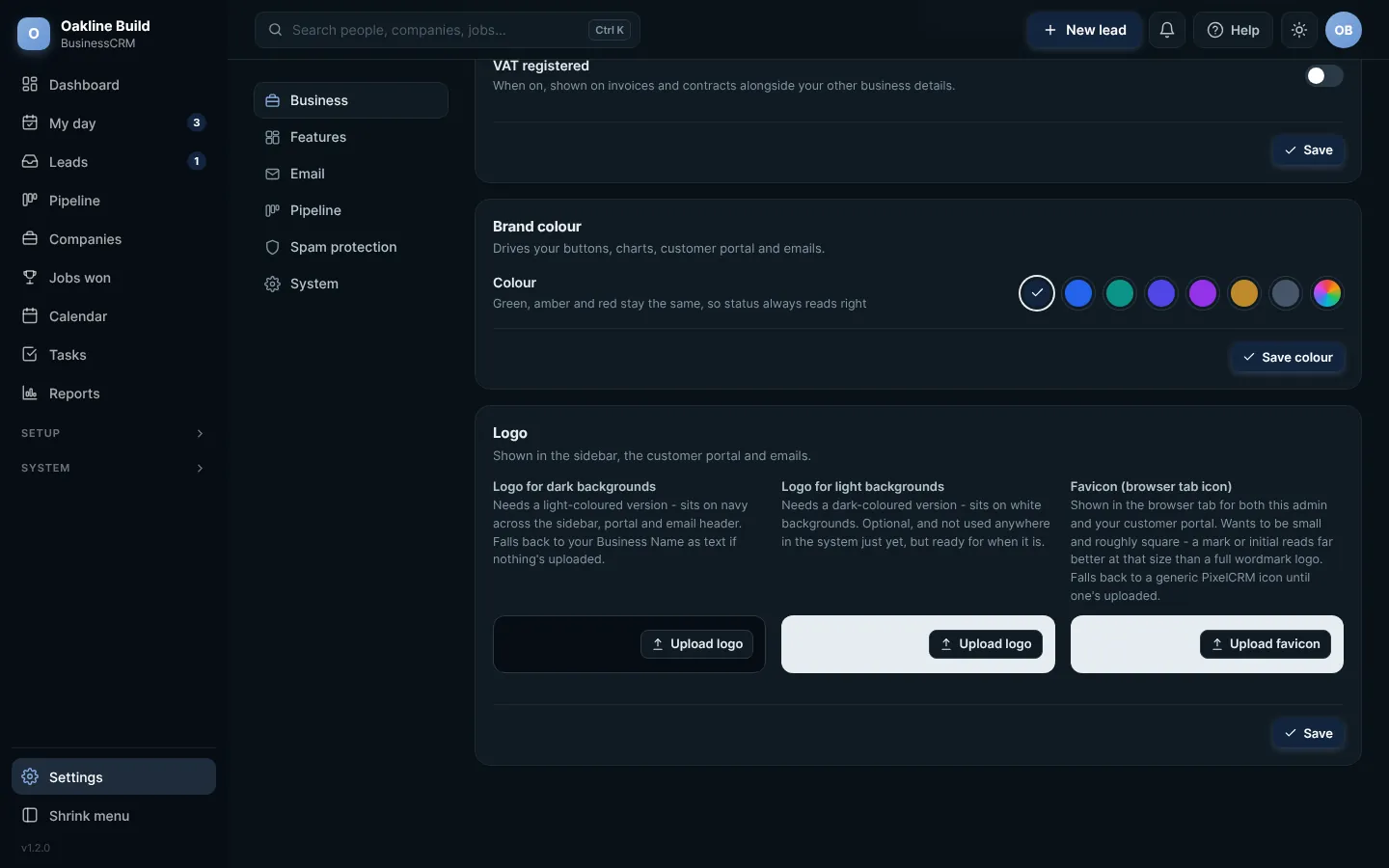
Settings: Brand colour and Logo. Click any picture to see it full size.
- Open Settings and scroll to Brand colour.
- Pick a colour. The rainbow swatch at the end lets you choose any colour you like.
- Press Save colour. The whole admin changes straight away.
Green, amber and red always stay the sameWhatever colour you choose, paid stays green, waiting stays amber and overdue stays red, so you can read your status at a glance.
Your logo
Under Logo you can upload up to three files: a logo for dark backgrounds (it sits on the menu), a logo for light backgrounds (used on documents and emails) and a small icon for the browser tab. PNG, JPG or WebP all work, and they are resized for you.
Using a dark logo?A dark logo can disappear on the dark menu. Upload a light version for dark backgrounds, or switch on the white badge so it sits on a white tile.
Try this in the playgroundYour own private copy of Business CRM, with sample data. Nothing you do is kept.
Open the playground