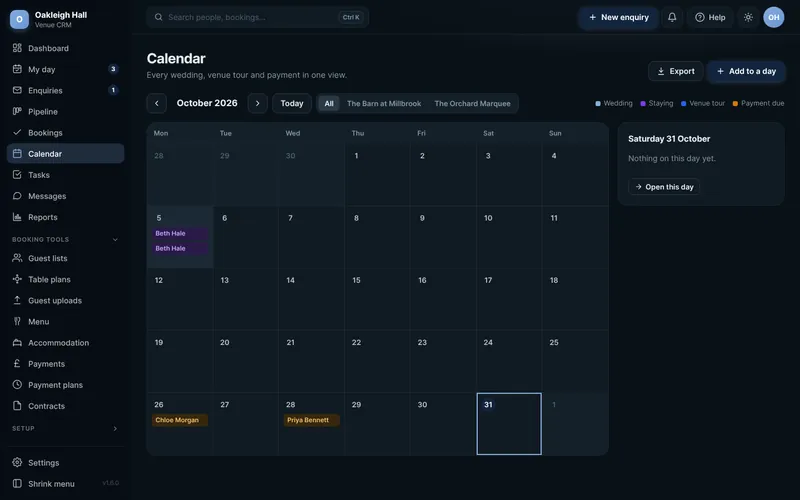
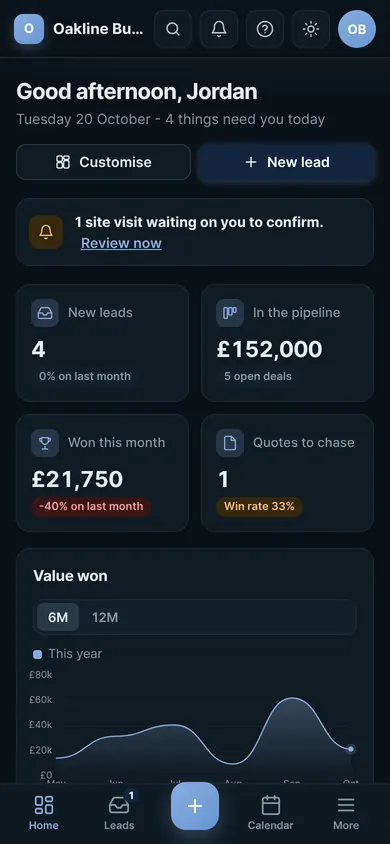
Alerts
Know the moment it happens.
Switch on alerts and your phone buzzes for the things that need you, even when your CRM is closed. Tap one and it opens right where you need to be.
- New enquiry or leadWhen someone fills in your website form, with their name and which form they used. Venue CRM says enquiry, Business CRM says lead.
- Enquired againWhen someone already on your system gets in touch again, so you can pick up where you left off.
- Payment receivedWhen a customer pays online, with the amount and what it was for, or marks a payment as paid in their portal. Venue CRM.
- Contract signedWhen a customer signs their contract and terms in the portal. Venue CRM.
- Portal messages, uploads and viewingsWhen a customer sends a message, uploads a document or books a viewing through their portal. Venue CRM.
Look around
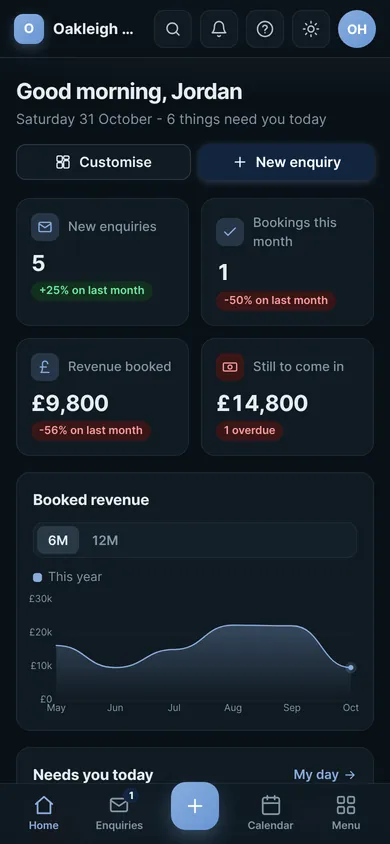
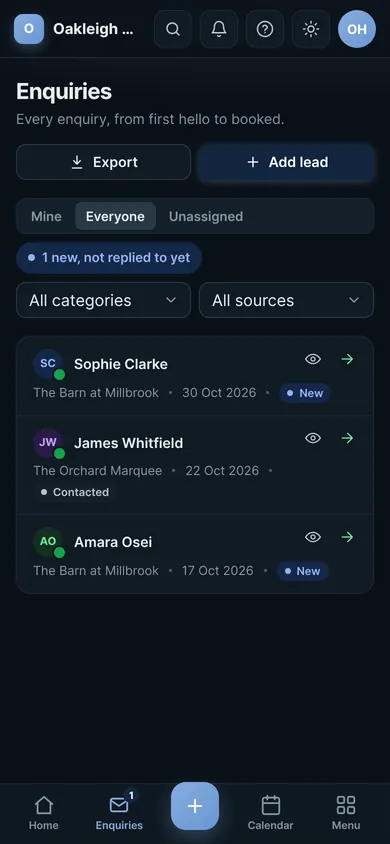
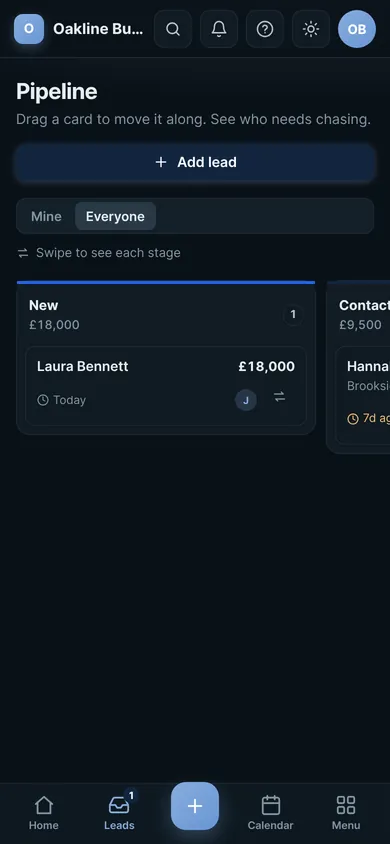
Your whole CRM, laid out for thumbs.
The same CRM you use on your computer, made for one hand on a phone, with a tray along the bottom for the things you do most.

Add it to your phone
Three taps. No app store.
The phone app installs straight from your browser, with its own icon in your colours.
Open your CRM
Sign in on your phone with the code sent to your email.
Add to home screen
On iPhone use Share in Safari, on Android use Install app in Chrome.
Turn on alerts
In Phone app and devices, turn alerts on and send yourself a test.
Questions
The app, answered.
The things people ask about running their CRM from their phone.
Do I need to download it from an app store?
No. Open your CRM on your phone, add it to your home screen from the browser menu, and it opens full screen with its own icon, in your colours, like any other app.
Does it work on iPhone and Android?
Yes. On iPhone, open your CRM in Safari and add it to your home screen first, as Apple only allows alerts for apps on the home screen (iOS 16.4 or later). On Android, use Install app in Chrome.
Which alerts will I get?
A new enquiry or lead from your website, someone already on your system getting in touch again, and on Venue CRM a payment received, a contract signed, and a message, upload or viewing booked through the customer portal. Tap any alert to open it.
Can my staff get alerts?
Yes. The Owner and Admins get every alert. Staff only get alerts for the parts of the CRM they can see, and amounts are hidden unless they are allowed to see money.
How do I turn alerts on or off?
Open Phone app and devices from your account menu, press Turn on alerts, then Send a test alert to check it. Turn off on this device only stops them on that one device.
What shows on my lock screen?
A short line, such as who an enquiry is from. Your phone's own notification settings decide whether alerts show on the lock screen.
What if I miss an alert?
Nothing is lost. Everything waits in your CRM, My Day shows what needs you today, and your enquiry emails still come in as normal.
Do I have to sign in every time?
No. Sign in once with a code sent to your email and that device stays signed in for 30 days. Lose a phone and you can sign it out from another device.
Is the app included?
Yes, it comes with every PixelCRM at no extra cost. It isn't part of the Live Demo or Book Demo, as alerts need a real CRM of your own.